
Dedicated Access Service
This is the DNS Firewall service used by those who manage their own DNS infrastructure.
**1. Access and Settings –**Here, you can view what service you have access to, i.e., the standard feeds, premium Zero Reputation Domain, or just the four basic free feeds.
You can also update the IP addresses you are pointing to our servers.
2. FAQs – these speak for themselves!
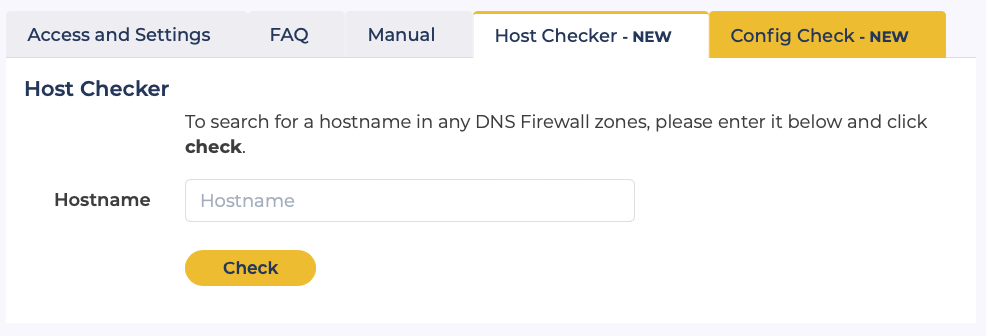
3. Host Checker – This tool enables you to search for a hostname easily, review the listing details, and request removal from the zones.
4. Ticket Center – you can view any open removal requests (for DNS Firewall Threat Feeds) via the Ticket Center. This can be accessed from Support in the header menu. When the removals team sends you an update on your ticket, you will always receive an email notifying you that a new response is waiting for you.
Please note: This tool is only available for commercial customers; it is not available to users of the free feeds.
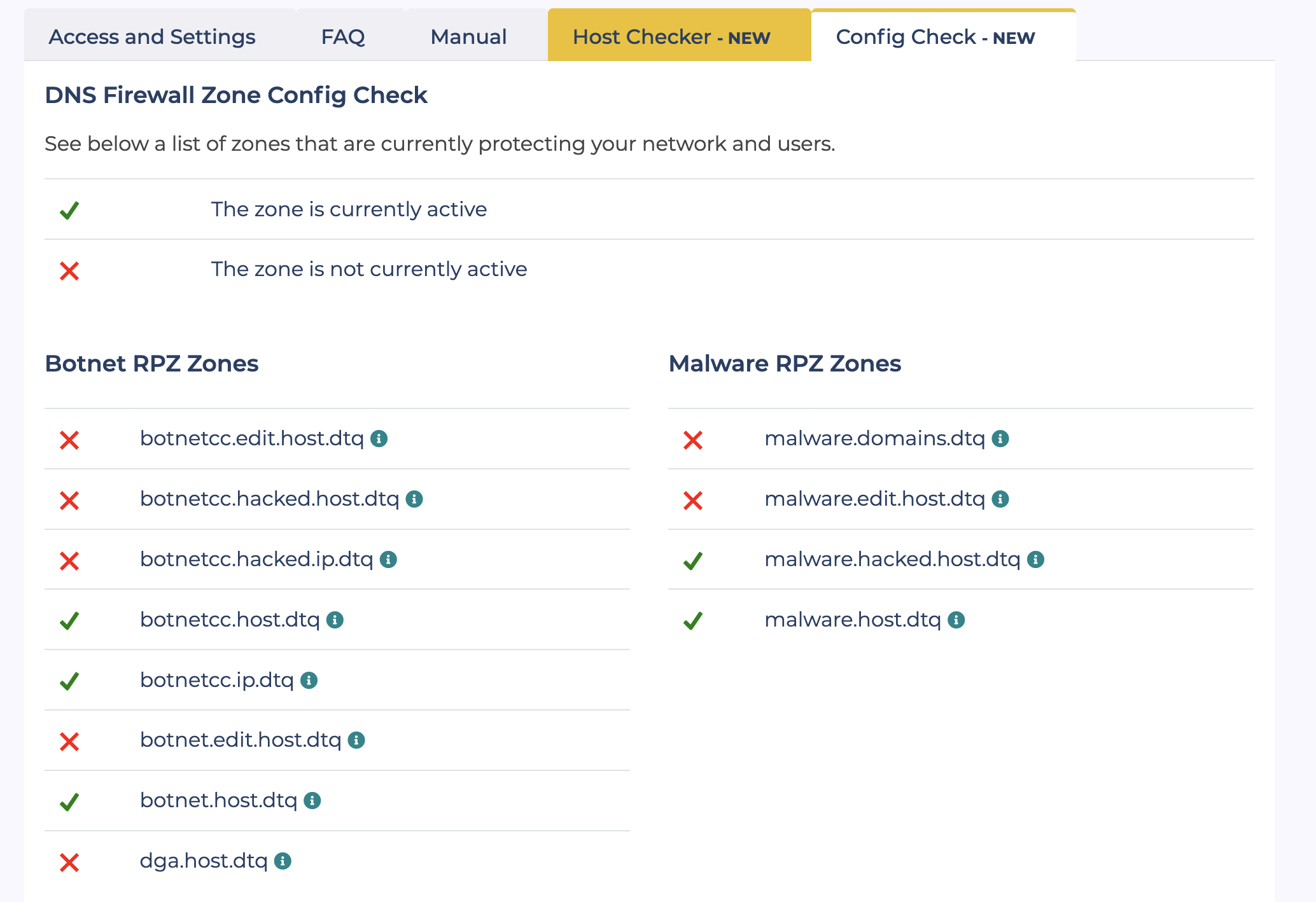
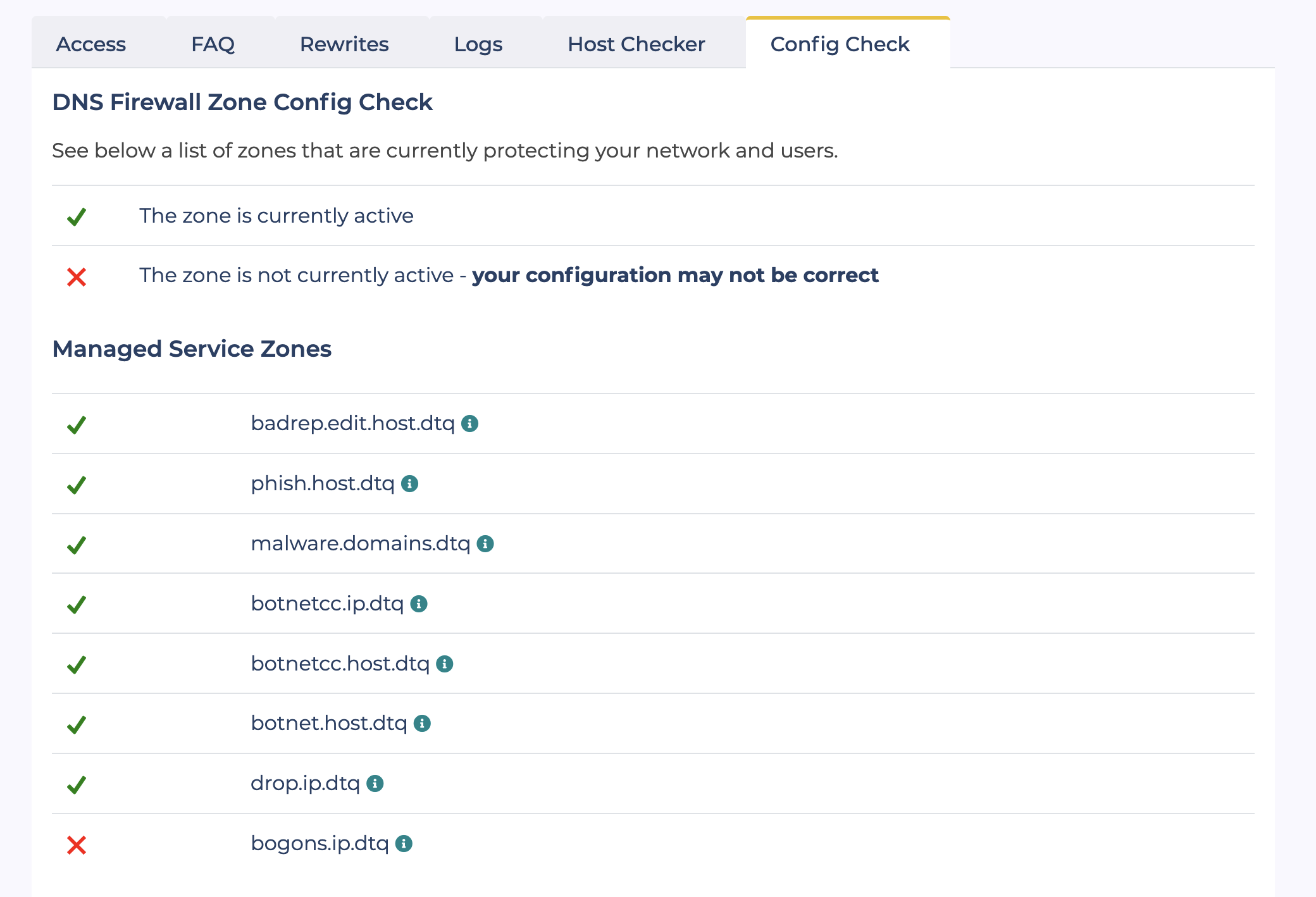
5. Config Check – This shows which zones you are currently protected by:
Managed Service
For users who utilize Spamhaus’ DNS Firewall Managed Service.
**1. Access and Settings –**Enter and amend the endpoint IP addresses you are pointing to our master servers.
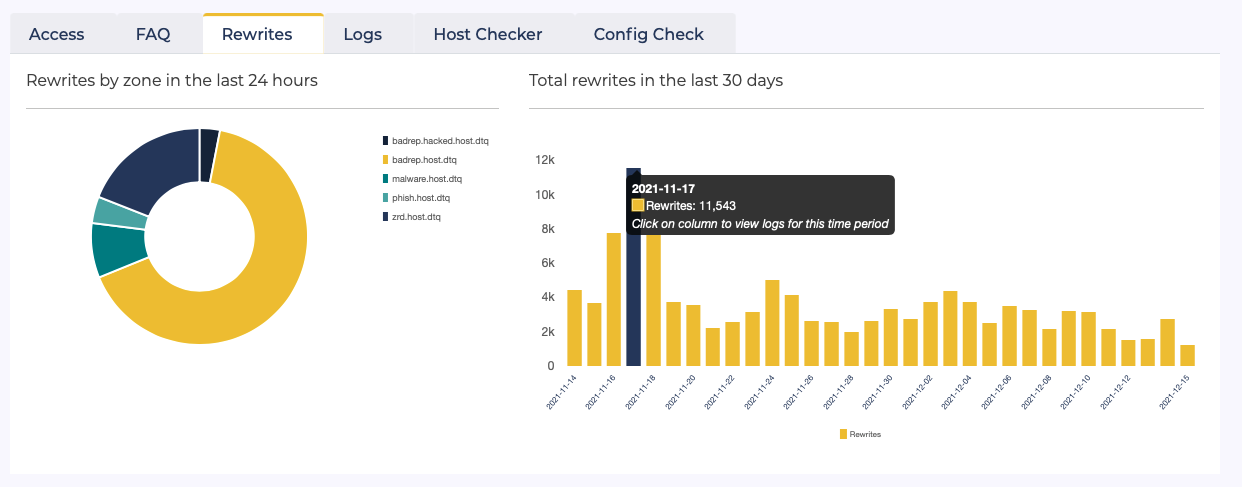
2. Rewrites– View the following statistics:
- Number of rewrites/blocks per zone over a 24-hour period – click through from each zone to view all the logs for that particular zone.
- The total number of rewrites/blocks over the past 30 days – click through from a selected day to view all the logs for that particular day.
3. Logs – View the rewrites/blocks for a specific zone, day, or the 1,000 most recent rewrites that your network has made. We provide the following data for each rewrite:
- Timestamp – time and date the rewrite was made
- Client IP – client IP making the rewrite
- Query – the hostname queried
- Zone – what DNS Firewall threat feed the hostname appeared in.
If you want to export this data, you can download the look-ups in a CSV format.
To request the removal of a hostname from a zone, you can simply click on the hostname in the list and explain why you are making the request before submitting it.
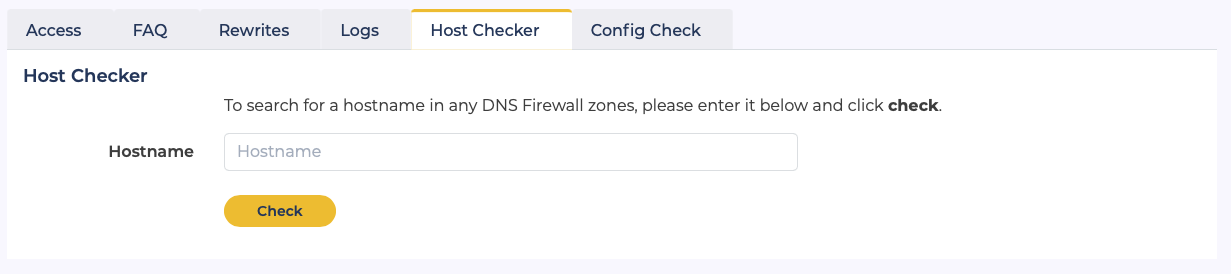
**4. Host Checker –**This tool enables you to search for a hostname easily, review the listing details, and request removal from the zone(s).
5. Ticketing Center – you can view any open removal requests (for DNS Firewall Threat Feeds) via the ticketing center. You can access this from Support in the header menu. You will always receive an email for ease of use when a new response is sent to you from the removals team.
6. Config Check – This shows which zones you are currently protected by:
Reputation checks and blocklist removals – coming in 2022
Now that you’ve seen the added functionality for requesting removals from our DNS Firewall Threat Feeds, you may be asking when this will be available for removals from our DNSBLs?
The answer is within the first half of 2022. As soon as we have further information on this, we’ll be in touch.
In the meantime, if you have any feedback for us regarding these portal updates or would like to see additional functionality, please don’t hesitate to get in touch with us via the contact form in the Customer Portal.