
Way back last century
Many moons ago, in 1999, Russ Nelson designed a tool to test DNS-based spam blocks on www.crynwr.com. This tool worked for IP-based blocklists at the SMTP level, with users interacting through email or telnet. However, the Crynwr tester was retired in 2019.
Meet the Blocklist Tester
The Spamhaus Blocklist Tester (BLT) builds on Russ Nelson’s concept, but it also tests domain and hash blocklists alongside message content in addition to IP blocklists. This is all done via a simple-to-use website interface.
How does the BLT work?
The BLT attempts to deliver emails to your server by connecting from internet resources listed in our blocklists, e.g., IP addresses. The anticipated outcome is that your email server should reject all these emails – well, there are some exceptions to that rule, but we’ll come to that later.
You can perform two types of tests either individually or together, although we recommend running the SMTP test initially:
- SMTP tests – these test SMTP-level filtering, where rejections to malicious emails are made before they can be delivered.
- Content tests – these are based on the content scanning of email headers and bodies. Where your system configuration is set to reject based on content, this tool will classify the results as for the SMTP tests. However, (and here’s the exception we referred to earlier) if your system set up tags potentially malicious messages and/or delivers them into a particular folder, then you will need to check that these emails have been processed as you would expect.
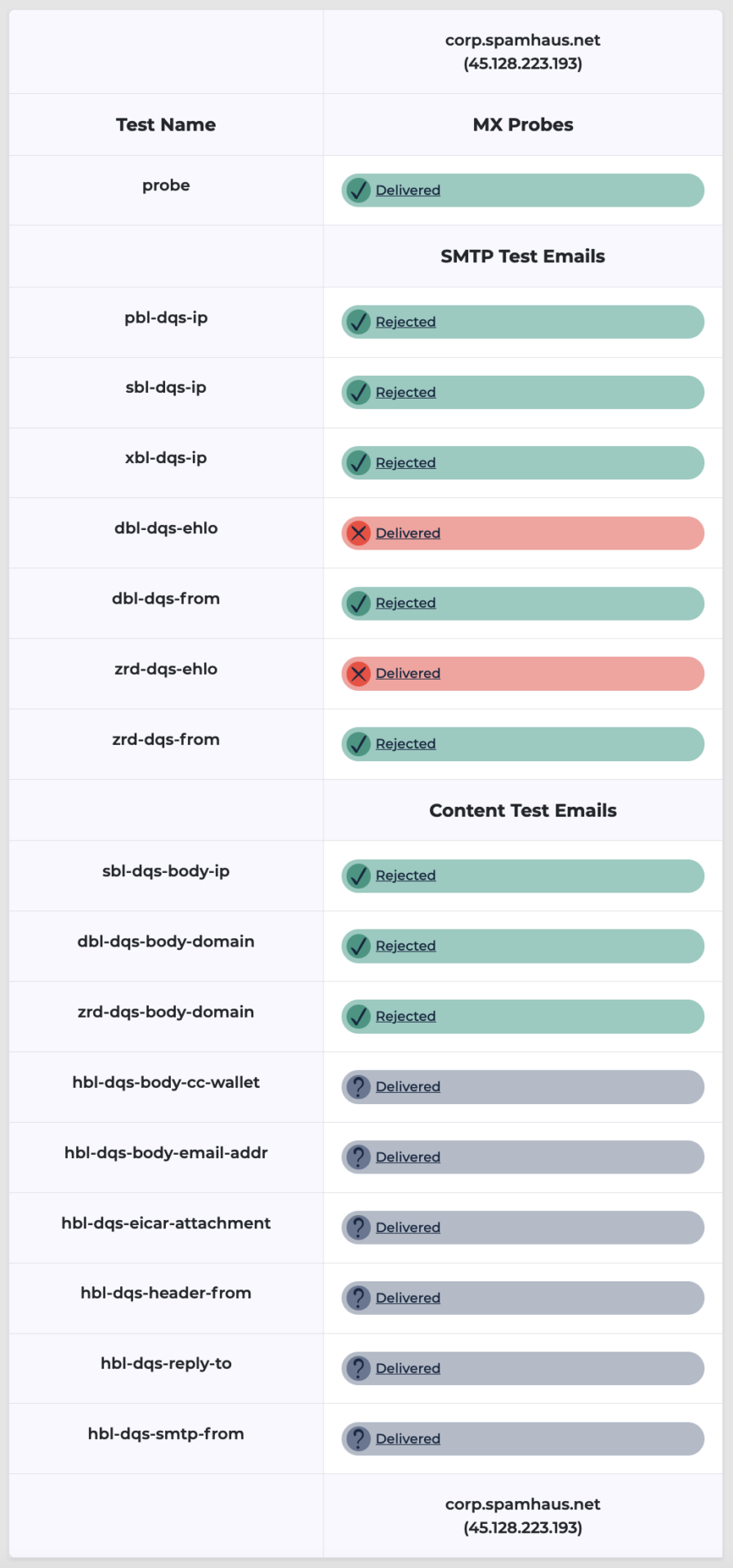
After undertaking a test, which you can run for either the Data Query Service or the Public Mirrors, a full report is displayed, showing the result of every test email sent:
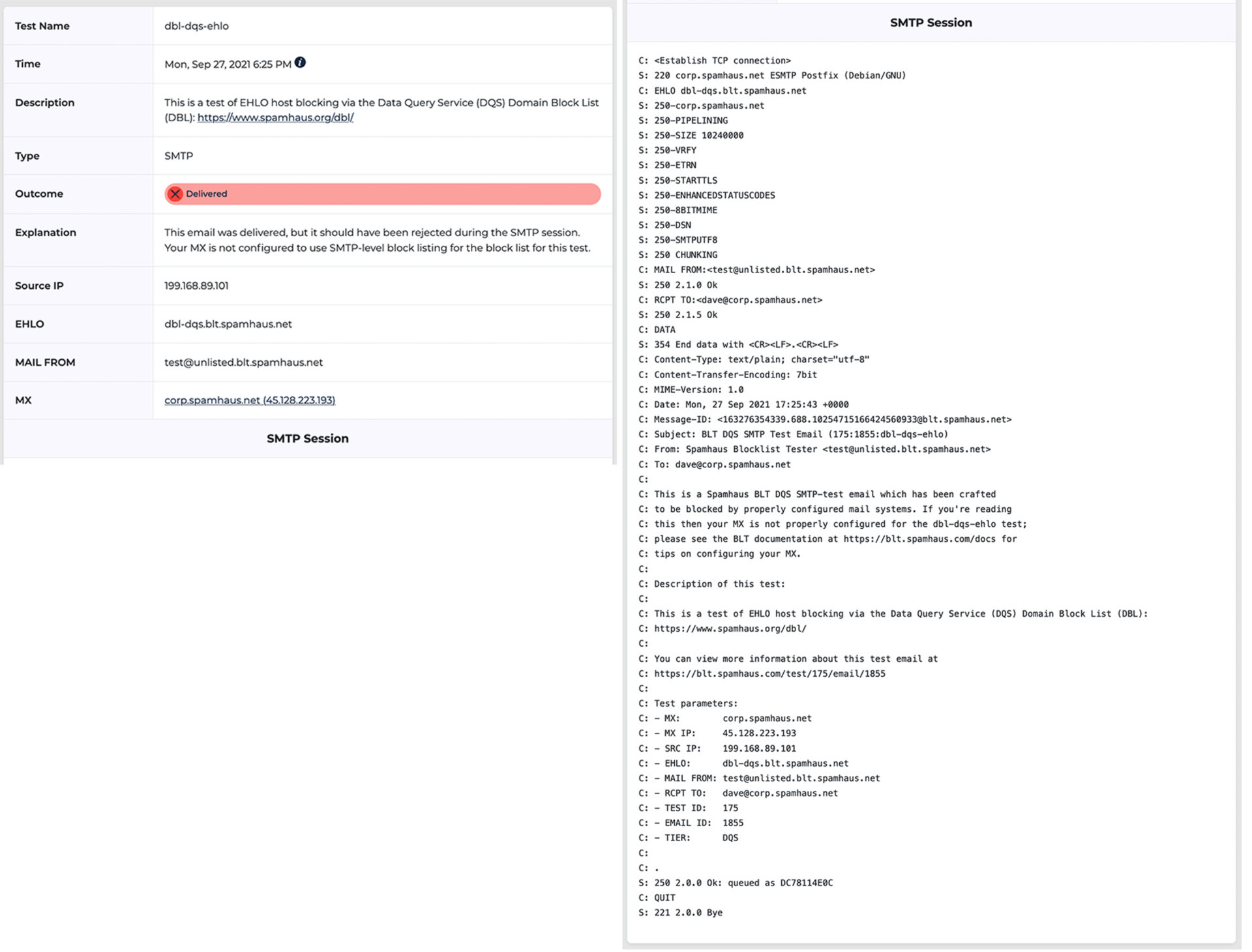
Where there are issues and emails have been delivered that shouldn’t have been, you can click through to get a full report of the SMTP exchange to assist with troubleshooting:
How to use the Blocklist Tester
We’ve tried to make this tool simple to use while providing as much information as possible to help you resolve any issues you might be experiencing with your set up.
1. Registration
- Go to the home page, enter the email address for the server you want to test, and click “Access Portal.”
- The BLT will execute an MX Probe test. The probe sends the following SMTP commands but does not deliver an email: EHLO, MAIL FROM, RCPT TO, QUIT.
- If the MX Probe can confirm that the host is responsive and accepting messages for the email address, the outcome is “good,” and we send a verification email to your registered email address.
- The verification email contains a link to log in. You can use this link to access the portal as many times as you want.
- If you aren’t receiving a verification email, we provide some diagnostics of the MX Probe test we’ve performed. To view these, click ‘View delivery details.”
2. Testing
- Once you’ve accessed the test page, you can run tests on either the Data Query Service or the Public Mirrors.
- Select which of the following tests you would like to complete: SMTP test emails, Content test emails, or both, and click on “Run Test.”
- The DNS mail exchanger (MX) records identify the servers which accept mail for a domain. The BLT finds all MX hosts for the email address and repeats the same test sequence for each one.
3. Reports
- The “Blocklist test report” will take some time to complete. However, you can see each test email result update in real time.
- Where you want further detail on a result, click on the icon, and this will take you to the “Test email” page, which outlines the SMTP exchange for that particular test.
We hope you find this tool helpful.
As always, we’d love to hear your feedback on it via the contact form in the Blocklist Tester.
Happy testing.