
Benefits of using the Checker via the Customer Portal
- No email verification – There is no requirement to confirm your email address for every removal request – logging into the portal verifies you automatically.
- Removal requests overview – The Ticket Center provides you with a clear summary of the status of all your removal requests in one single place.
- Easy to access tickets – Manage tickets and discuss listing issues with the removals team via the Ticket Center.
Functionality overview
Here’s a quick review of how to use the Checker in the Customer Portal:
- Look up the resource (IP, domain, or hostname) via the search bar in the header.
- Full details of the issue are provided, where a resource is listed.
- Take all suggested remediation steps.
- Request removal.
- Where an automatic removal doesn’t occur, a ticket will be opened.
- Track and manage all your tickets via the Ticket Center.
To take an in-depth look at this functionality keep reading, or view this video.
Search IP and Domain reputation
Once you have logged into the Customer Portal, search for an IP, domain, or hostname, using the search bar in the header. You can do this from any page within the portal.

If no listing exists, you will see the following:
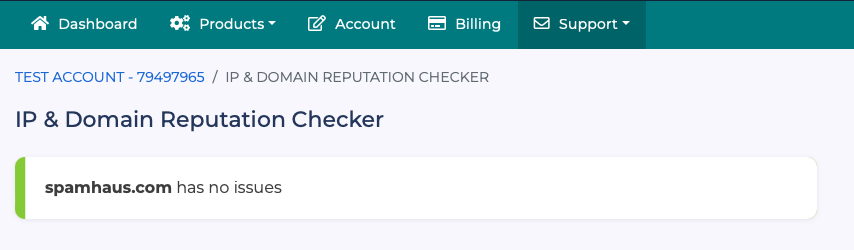
Where a listing does exist, you will see something similar to this:
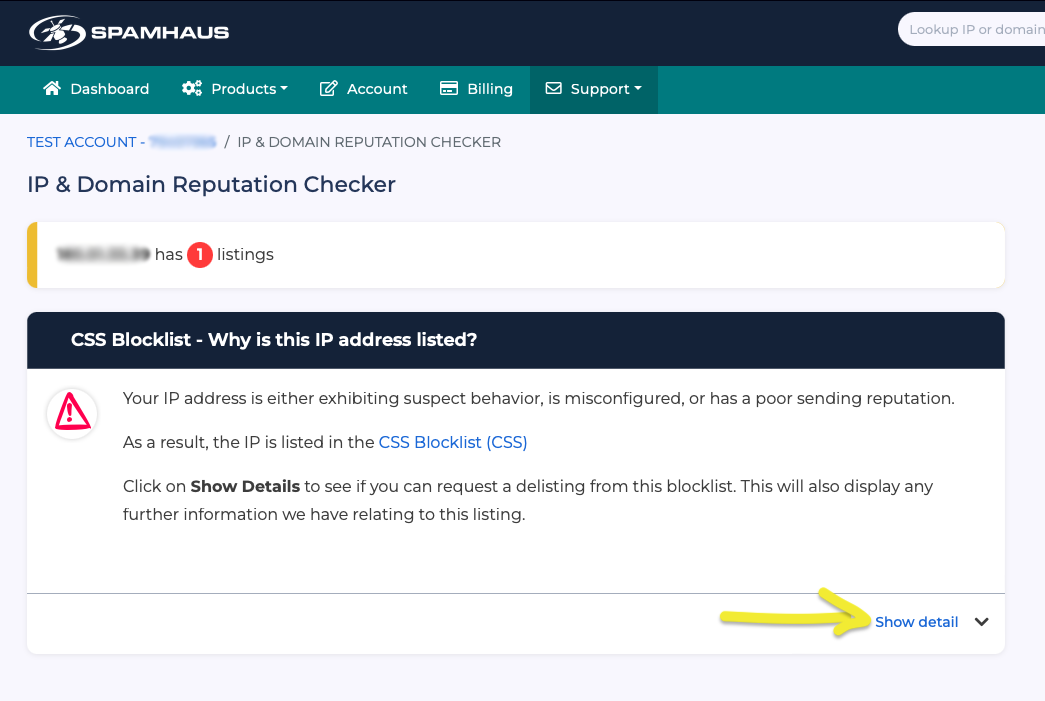
To get more details on the listing, click on Show detail.
Is there a Spamhaus Blocklist (SBL) Listing?
Suppose the IP address you searched for has an SBL listing. In that case, removal requests from this blocklist can only be made, via email, by the Internet Service Provider (ISP) responsible for the IP in question. An ISP’s abuse team usually handles these requests. SBL removals cannot be done via the Checker.
Where an IP is listed on additional blocklists, e.g. CSS, XBL or PBL, you will not be able to request removal from these blocklists until the SBL listing has been resolved.
Read and remediate
Take time to read ALL the information provided by the delisting team. Now is not the time to rush ahead and request removal if you have not taken the recommended remediation steps.
If you do, the resources will end up re-listed, and where frequent re-listings occur, automatic removals are denied. This enables the delisting team to engage with you directly to resolve the issues before another removal takes place.
Request removal
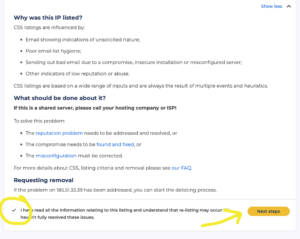
Once you’re confident you’ve resolved the issue(s) that led to your resource listing, check the box at the bottom of the listing information page and click Next steps.
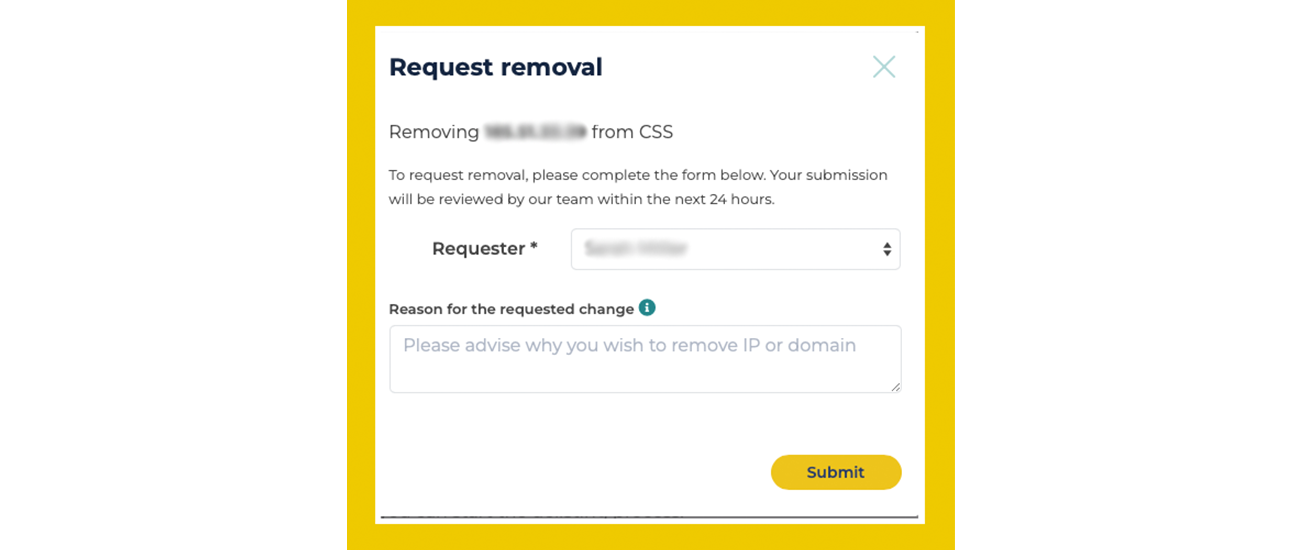
Complete the pop-up box, select your name from the drop-down box, explain what remediation steps you’ve taken and why you wish to remove the IP or domain and click Submit.
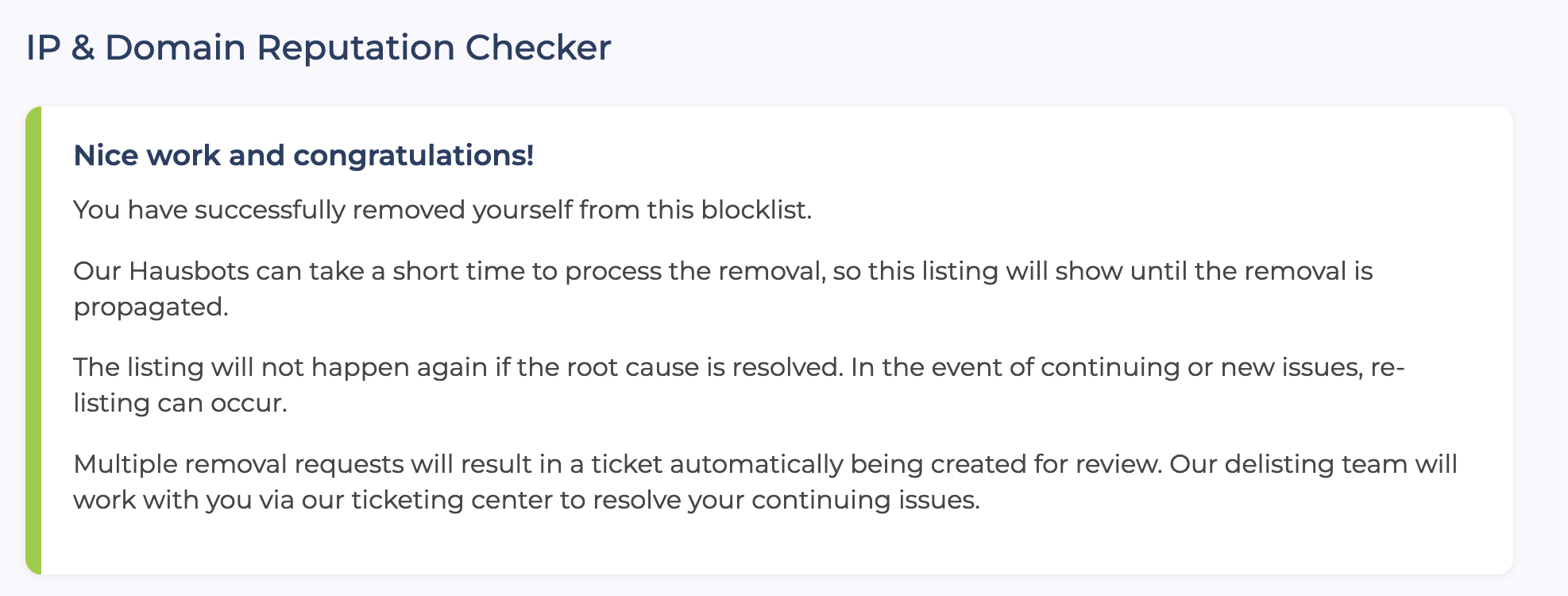
Automatic removal
If an automatic removal has been allowed, then you will see the following screen, and no further action is required:
Ticket raised
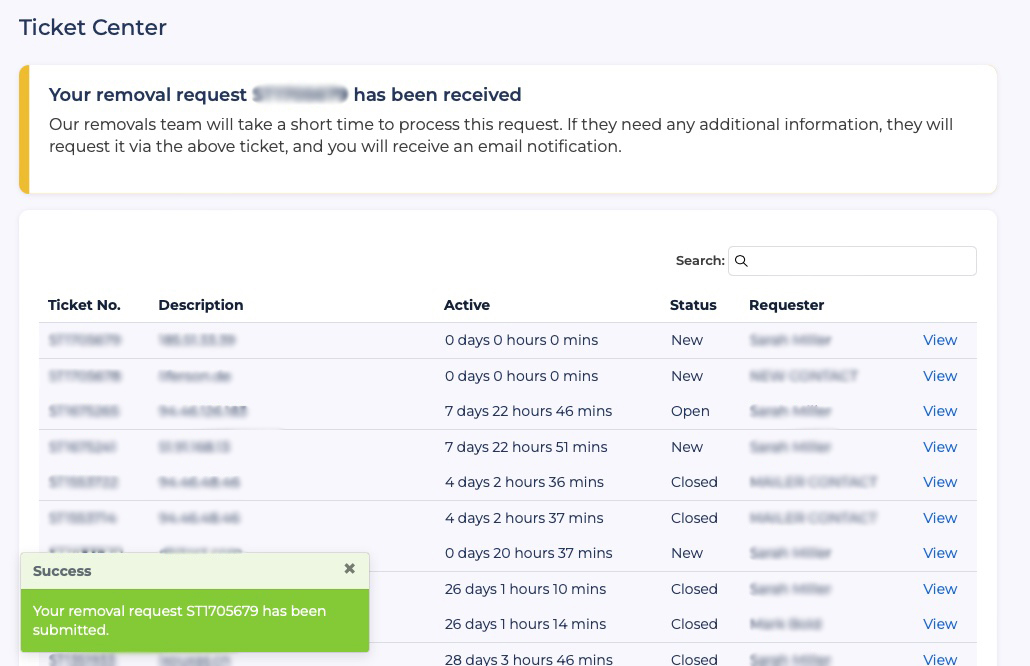
Where automatic removals are not permitted, then the Checker will automatically raise a ticket and navigate you to the Ticket Center:
Ticket Center
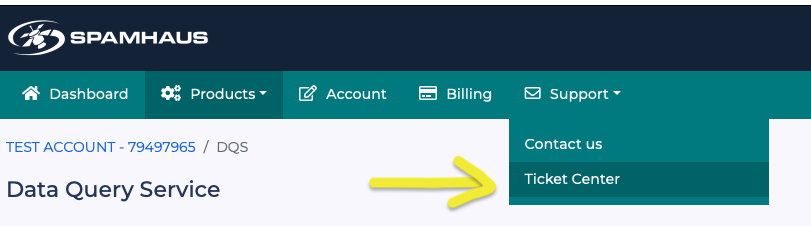
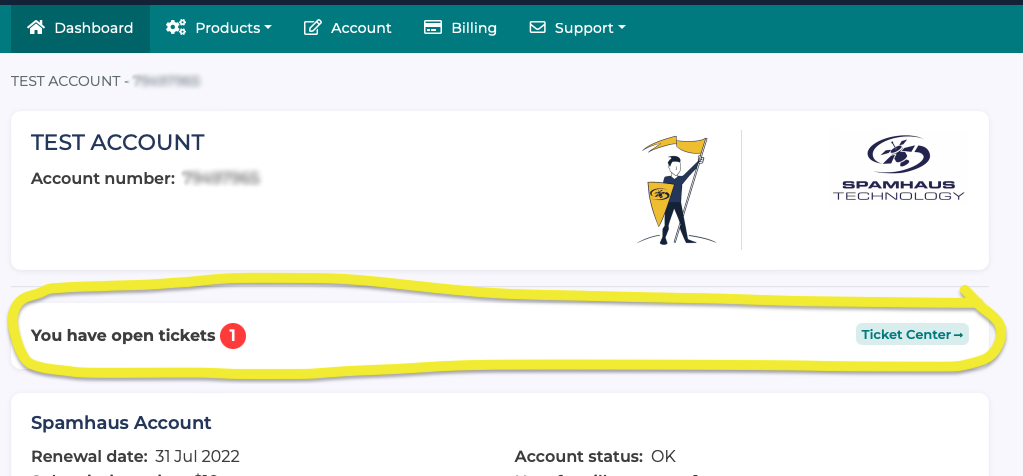
You can access this from two places:
1. Via the top menu from Support / Ticket Center:
2. If tickets are waiting for your review, i.e., the delisting team has responded to you, a notification will appear on your Dashboard:
From the Ticket Center, you can sort by various fields by clicking on the table header:
- Ticket number – Spamhaus’ ticket reference.
- Description – IP, domain name, or hostname.
- Active – how long the ticket has been active.
- Status – new, open, or closed.
- Requester – who from your account made the delisting request
Viewing a ticket
To view the full details of a removal request, including correspondence with the delisting team, click View next to the relevant ticket in the Ticket Center.
Messaging the delisting team
Simply view/open the relevant ticket to send them a message. Whenever the delisting team responds to a ticket, you will receive an email notification advising you that a response is waiting in the Ticket Center.
Feedback
We’re always looking for ways to improve the tools we’re providing our customers, so please reach out to us via the contact form in the Customer Portal with suggestions for future releases.